Content Editing
The content of your website consists of the Pages, Posts, News Releases, and other types of content (known as Post Types in WordPress) that make up your web site.
This content can then also be organized using taxonomy - which includes categories, tags and other custom taxonomy vocabularies.
Read more about the content strucure for DC 37.
Your site can also contain various types of media such as images, video, audio, and documents. These are collectively known as Media in WordPress.
Read More about using Media in WordPress
View and Manage your Content
Each post type has its own section in the main navigation panel on the left of the admin dashboard.
You will see links for each post type, as well as the Media link that goes to the WordPress media Library.
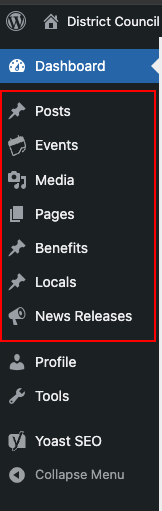
For instance, To view all the Pages in your site, Click Pages in the left sidebar. This will show the Pages screen with a list of all the pages you have in your site.
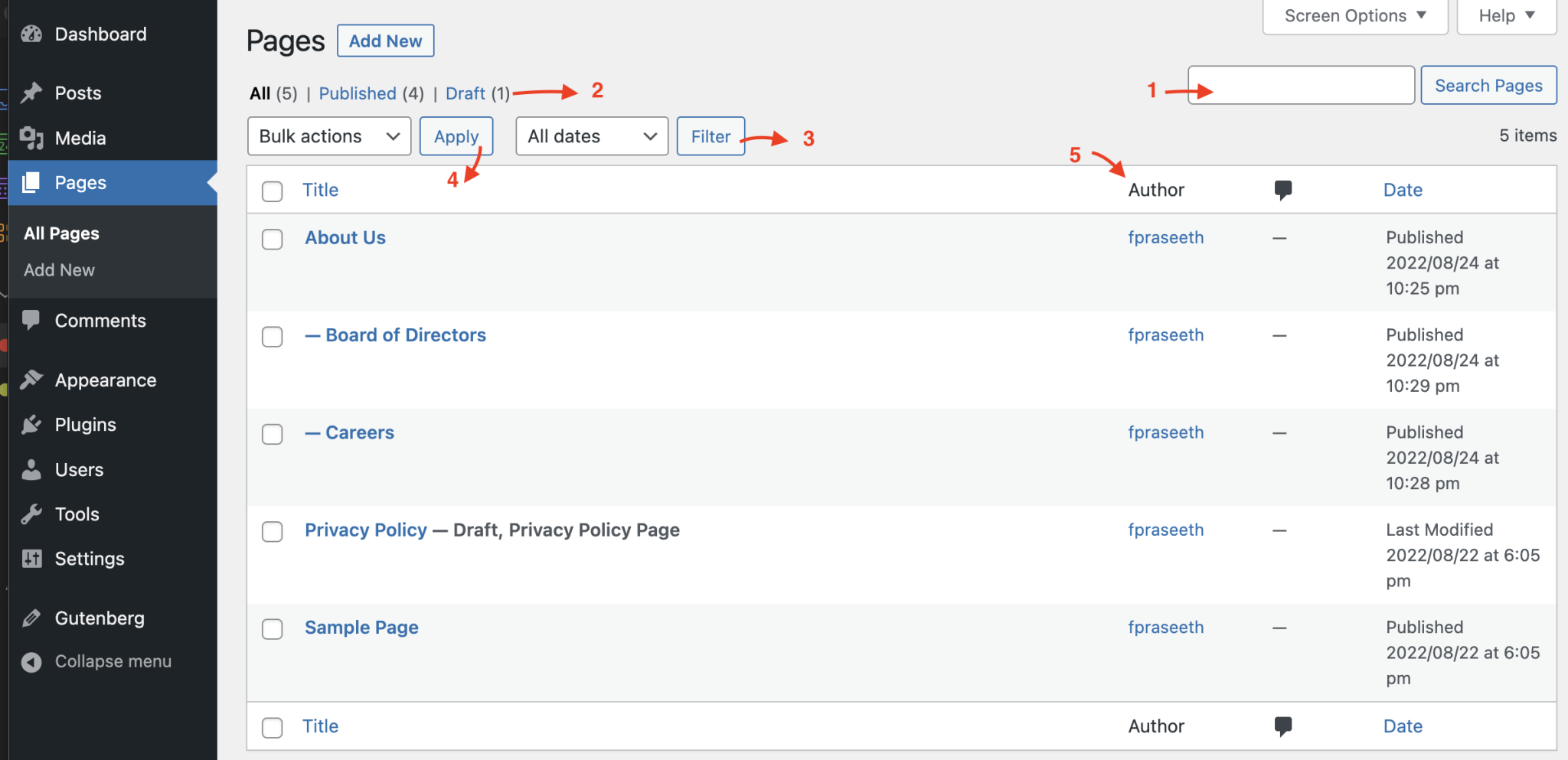
- You can easily search for a Page based on the Page Title.
- You can get a list of all the Published Pages or Draft Pages.
- You can filter Pages based on dates.
- You can perform Bulk actions > Edit or Move to Trash by selecting multiple Pages from the list. Select pages for bulk actions by selecting the corresponding checkbox at the start of each table row.
- You can sort the Pages list based on Title, Date, Author etc by clicking the Header columns.
Each post type (Posts, Benfits, Locals, etc) will have a similar section laid out in the same manner, for managing the content of that particular type.
Creating new content
When you are in the administration dashboard, you can create new content from either the top toolbar, or the main navigation panel.
There are many different types of content that you can create. These content types are called Post Types in WordPress.
View the Post Types reference for DC37.
Page (example)
To create a new Page:
-
Click the Pages > Add Page in the left sidebar.
-
You can also click the Add Page button in the Pages screen.
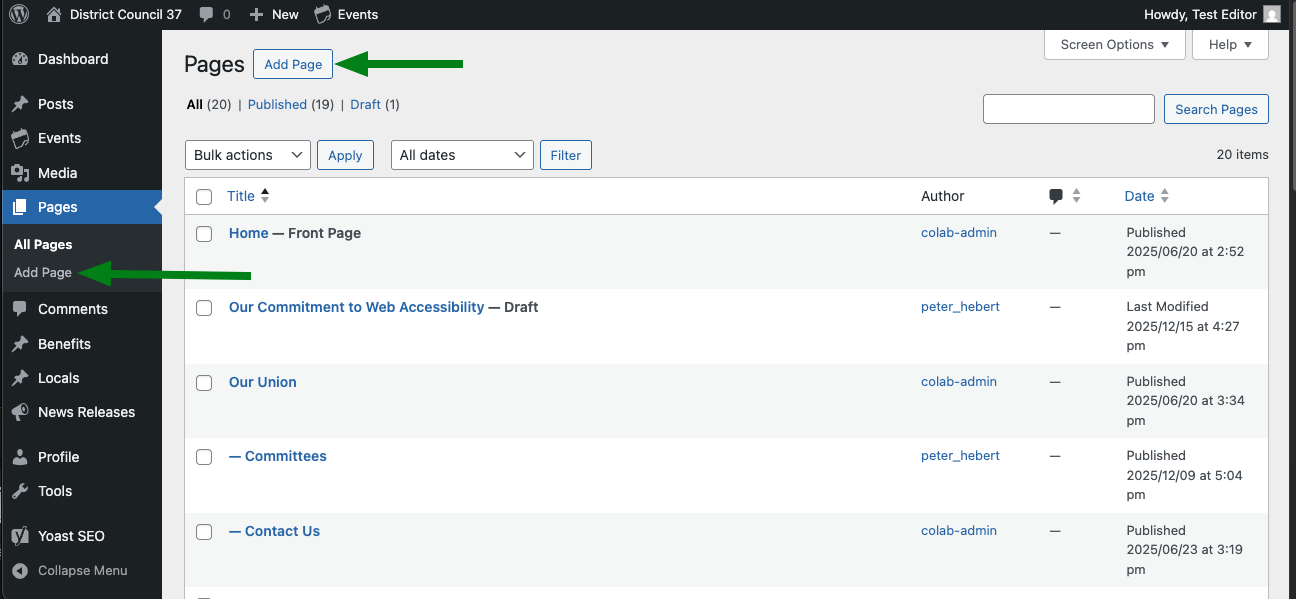
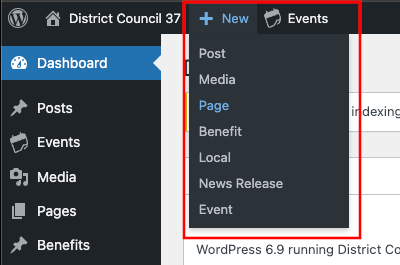
Alternatively, you can also go to New in the top toolbar, and from the sub-menu, choose Page (or the name of whichever post type you wish to create).
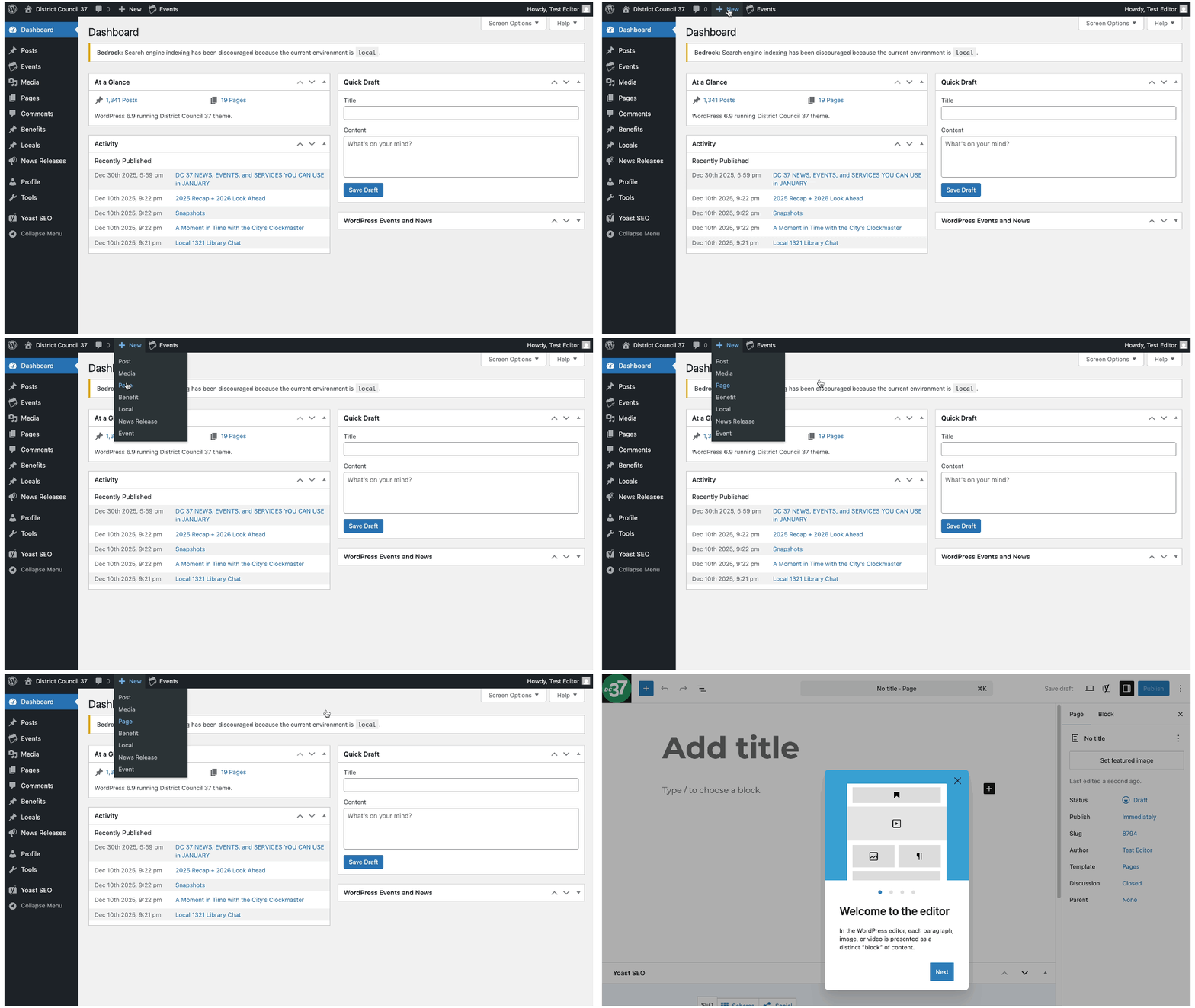
The process is the same for all post types - just go to the admin section for the post type you wish to create, or select the post type name from the top toolbar under + New:
Home Page
We'll explain how each of the major sections of the home page work.
Hero
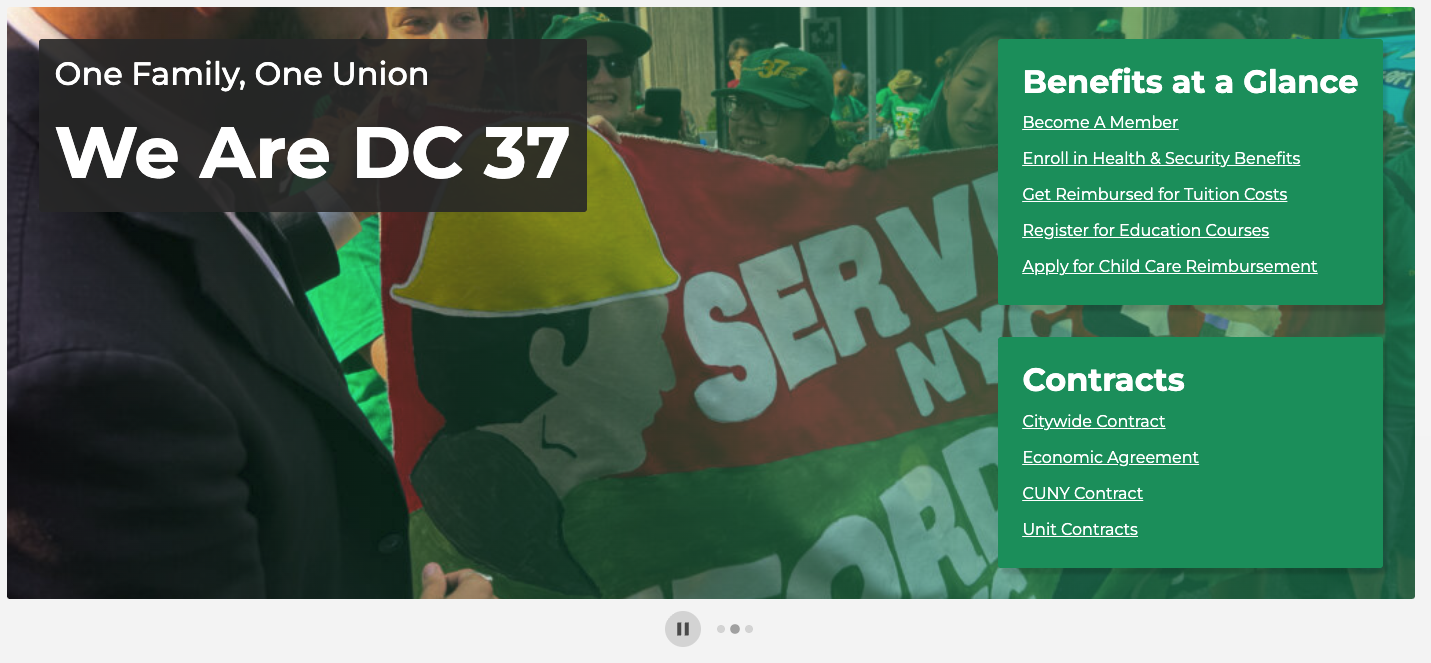
The Hero section is a large banner with rotating photo carousel in the background, along with some major site links in the foreground.
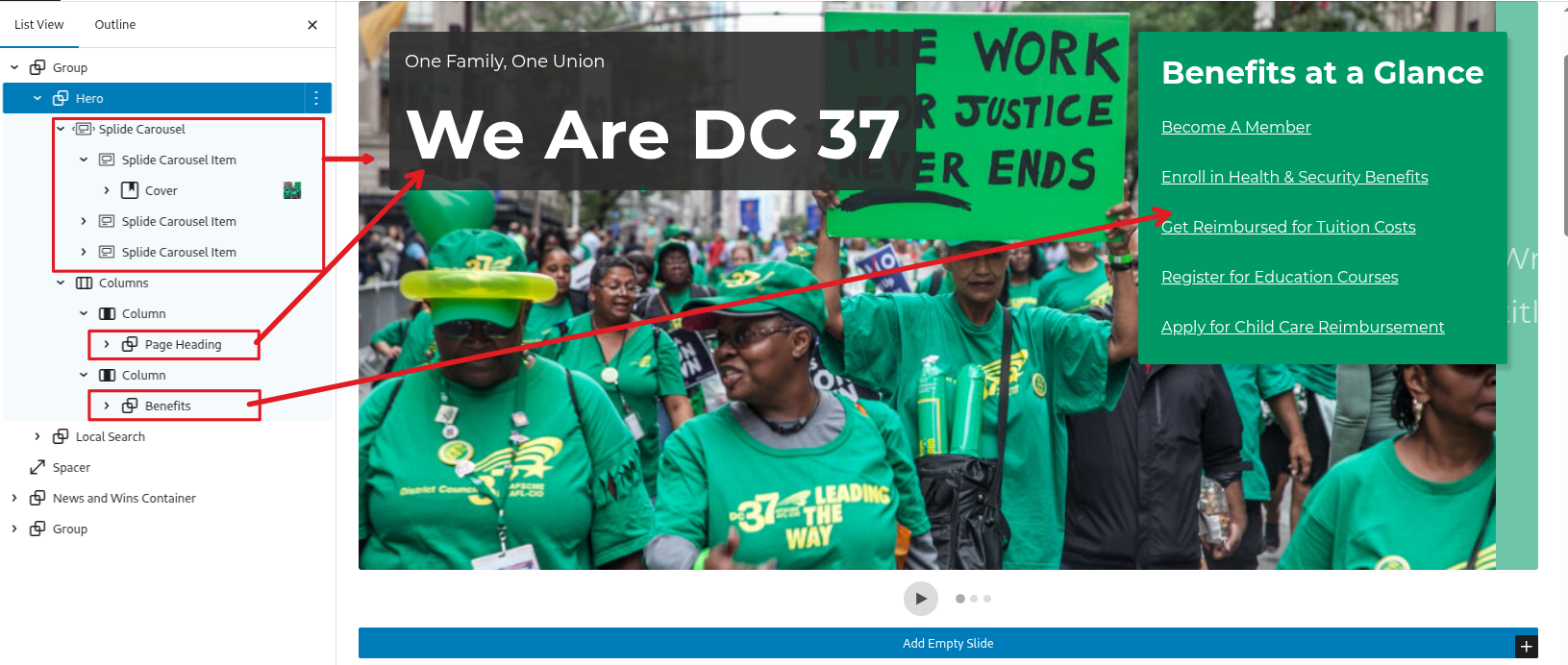
The hero section is comprised of the following blocks:
- Splide Carousel - The carousel is used to show a series of slides containing the background images for the banner. This slideshow is pre-configured with two slides and wide alignment. It is set to auto-advance, and also has a pause/play button for those who wish to control the motion of the slideshow.
- Splide Carousel Item - An individual slide within the Hero Carousel.
- Cover - Background image used inside a slide item.
- Splide Carousel Item - An individual slide within the Hero Carousel.
- Page Heading - intro text overlay
- Benefits - A navigation mneu containing links to major Benefits topics.
Local Search
Search form used to find union locals by name, number or job title.
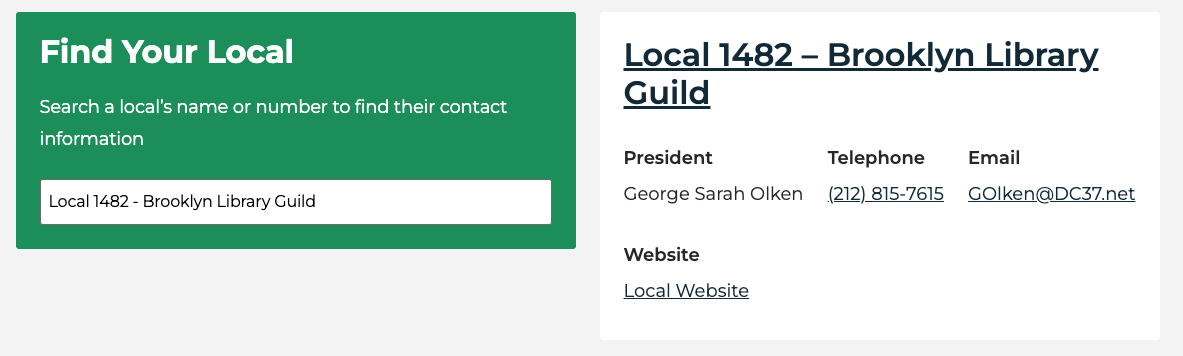
As you type, it provides matches in adrop-down list. When you select a matching Local from the drop-down, it loads a preview in the card below (on mobile) or on the right column (larger screens).
You cannot edit anything with this search component itself, this is managed in code.
News and Wins
The News and Wins section highlights the most important recent news relases or blog posts. The content is manually curated.
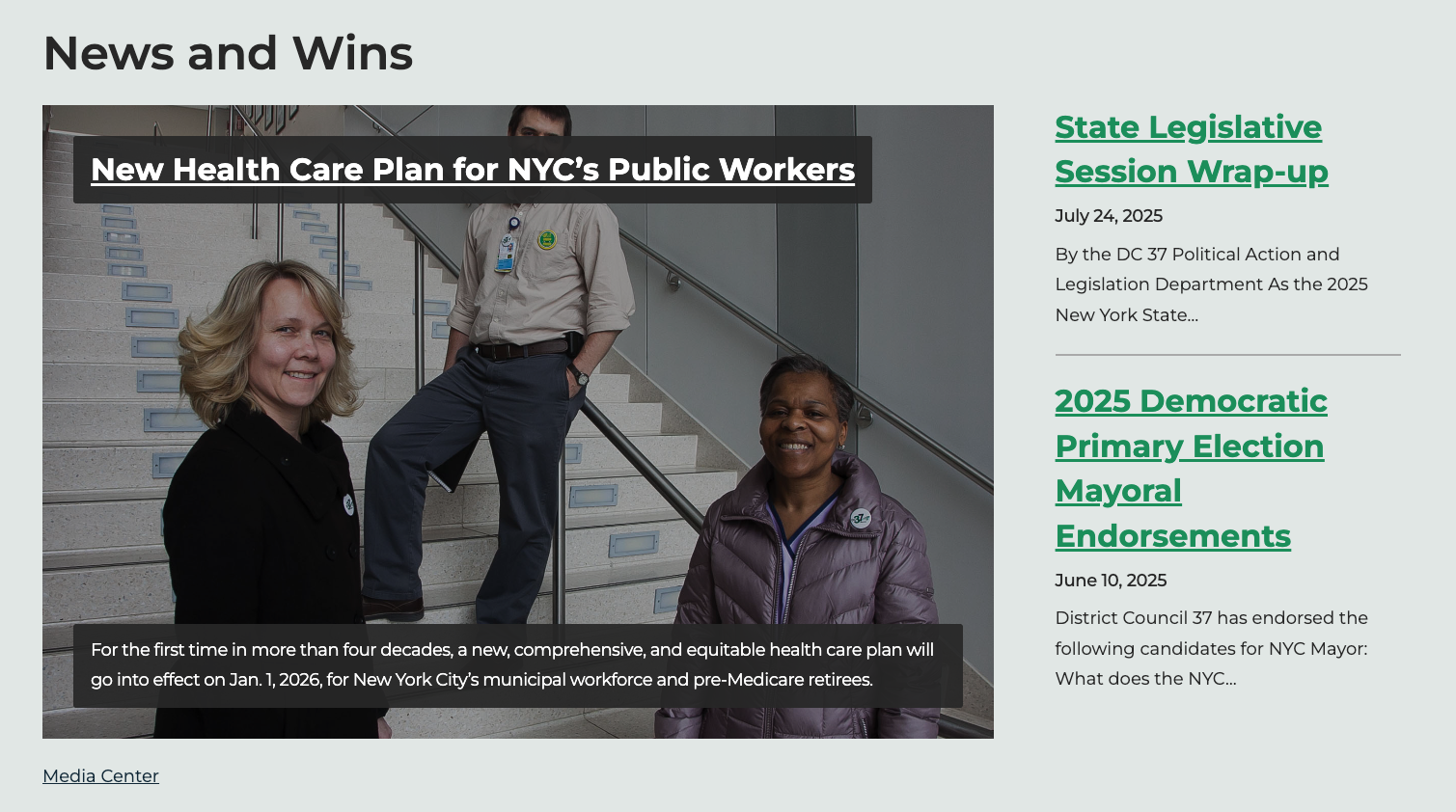
The News and wins section has two sections:
- A large card with image for the most important item (News Feature).
- A list of short teasers without image (Curated Single Post).
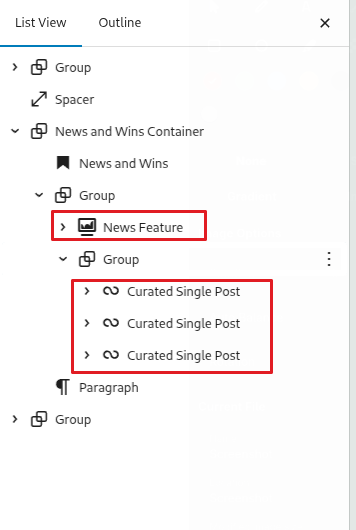
News Feature
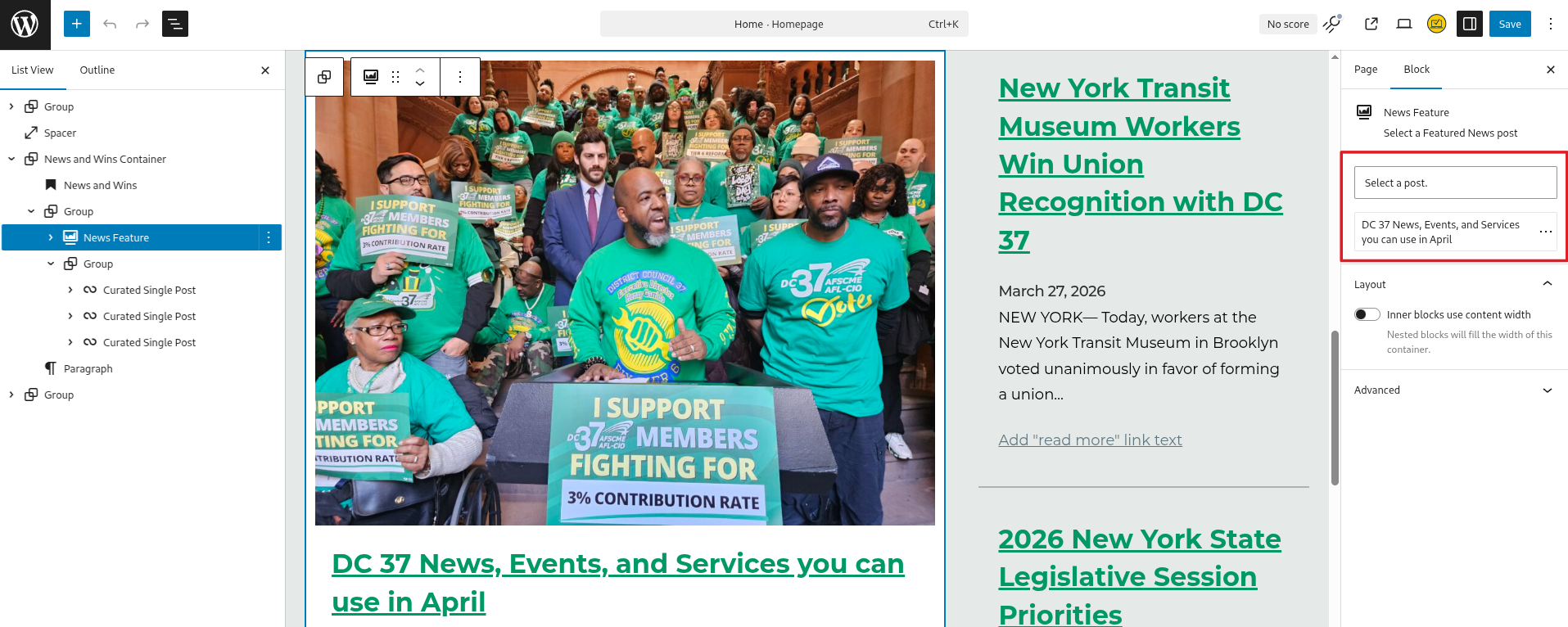
This is the large feature - supports both blog Posts (post) and News Releaase (news-release). The post template shows as a card with a image using the Large (3:2 ratio) image size.
Type to find the Post or News Release you want to include. To remove the existing post, click the three dots menu, and choose Unselect post.
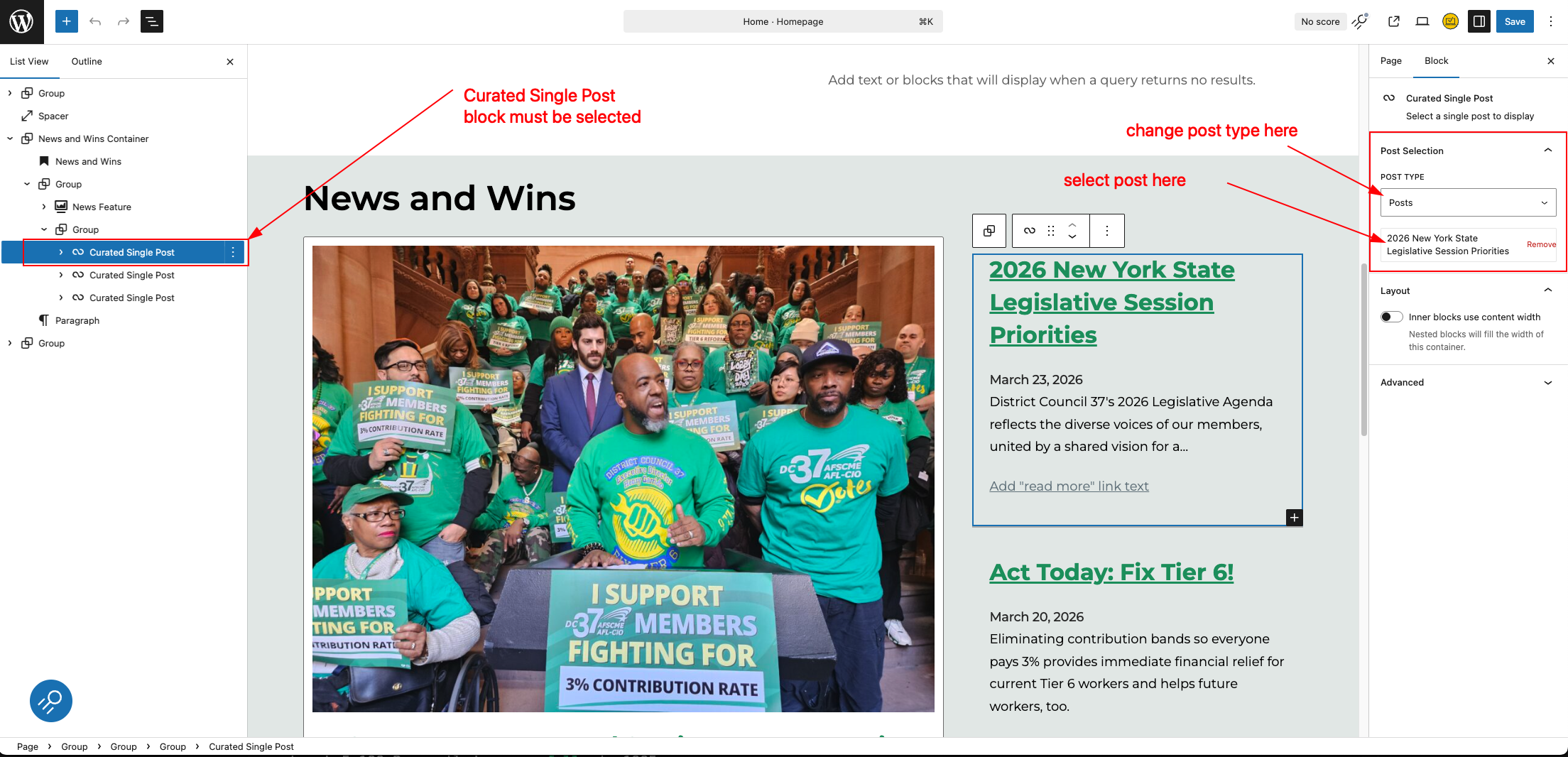
Curated Single Post
These are used to show the list in the right column without images. These allow one post per block.
- First select the post type you wish to include in the Post Type dropdown.
- Then you can Select a post by typeing and selecting from the matching titles.
- To replace a post, click Remove beside the posy title to return to the post selector field.
You can change order of each Curated Single Post block via the up and down arrows in the block editor toolbar, or via drag and drop in the block outline panel.
DC 37 In Action
The DC 37 in Action section contains a standard Gallery block.